

Updated on: 2026-05-31
High-speed mobile data access helps you stream, navigate, and message with less waiting. It depends on network coverage, device capability, and the plan you choose. With the right settings and a smart usage routine, you can keep speeds stable on the go. This guide shows how to set up, troubleshoot, and choose a mobile data option confidently.
Table of Contents
Why High-Speed Mobile Data Access Matters
When you leave home, your phone becomes your map, your camera remote, your messaging tool, and your entertainment hub. That is why high-speed mobile data access is more than a convenience. It affects how quickly pages load, how smoothly video plays, and how reliably navigation updates.
Fast mobile data can also reduce stress. If you have ever waited for a chat to send or a page to refresh, you know the feeling. With stronger throughput, you spend less time reloading and more time doing what you planned.
Speed is not only about the number you see in an app. Real-world performance changes based on signal strength, network type, congestion, and how your phone handles data. By understanding these factors, you can pick a setup that fits your route and your daily habits.

Signal bars, icons for maps, chat, and video
How-To Guide
This step-by-step guide focuses on practical actions. You can use it before a trip or whenever your connection feels slow. The goal is steady data performance, not just a one-time speed test.
1) Check coverage where you travel
Start with your location. Coverage is the foundation for a fast connection. Even a top device and a good plan cannot fully fix weak reception.
- Look at whether your route includes strong service areas, not only your destination.
- Be mindful of indoor or basement locations where signal drops.
- If you move between neighborhoods or travel by train or car, expect signal conditions to change.
2) Choose the right plan for your needs
A good plan supports the kind of data use you expect. Think about how you will use your phone during the day. For example, streaming and video calls use more data than basic messaging and browsing.
If you want options designed for travel, you can explore UbeSIM plan pages such as:
- US data package options
- Singapore data package options
- UAE data package options
- Japan data package options
Choose the option that matches your trip length and typical usage. If you are unsure, select a plan that gives you buffer so you are not forced into low-usage mode mid-day.
3) Set up your phone for best performance
Once you have service, configure your device to use it efficiently. Small adjustments can improve stability.
- Restart your phone after activating service to refresh network connections.
- Ensure mobile data is enabled and the correct network mode is selected in settings.
- Turn off data-saving features only if they limit performance for your use case.
- Keep your operating system updated for better network handling.
4) Optimize data usage and background apps
Sometimes the “slow” feeling is really a data contention issue from background activity. Your phone may be uploading photos, syncing cloud services, or updating apps while you try to load maps.
To help speed feel consistent:
- Pause auto-updates over mobile data.
- Limit background refresh for apps that are not essential right now.
- Use Wi-Fi when you can, but avoid switching repeatedly between unstable networks.
- Close heavy apps after use, especially video and social feeds.
This approach often improves perceived speed, even when the network conditions stay the same.

Phone settings screen and a background sync checklist
5) Test and troubleshoot speed issues
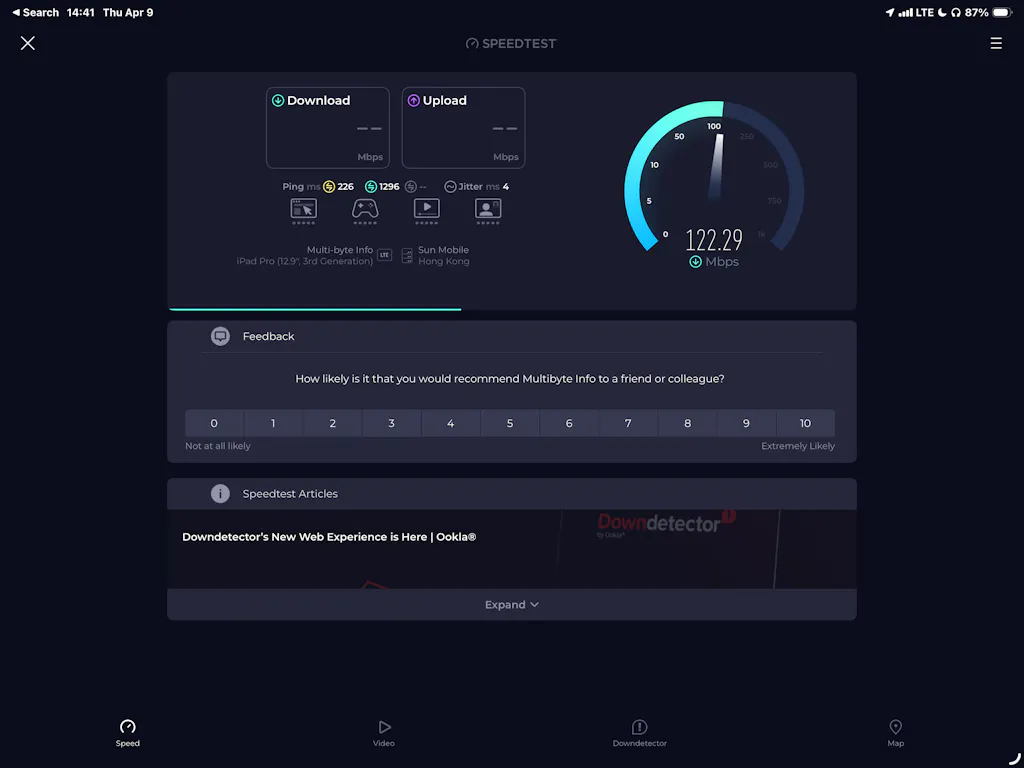
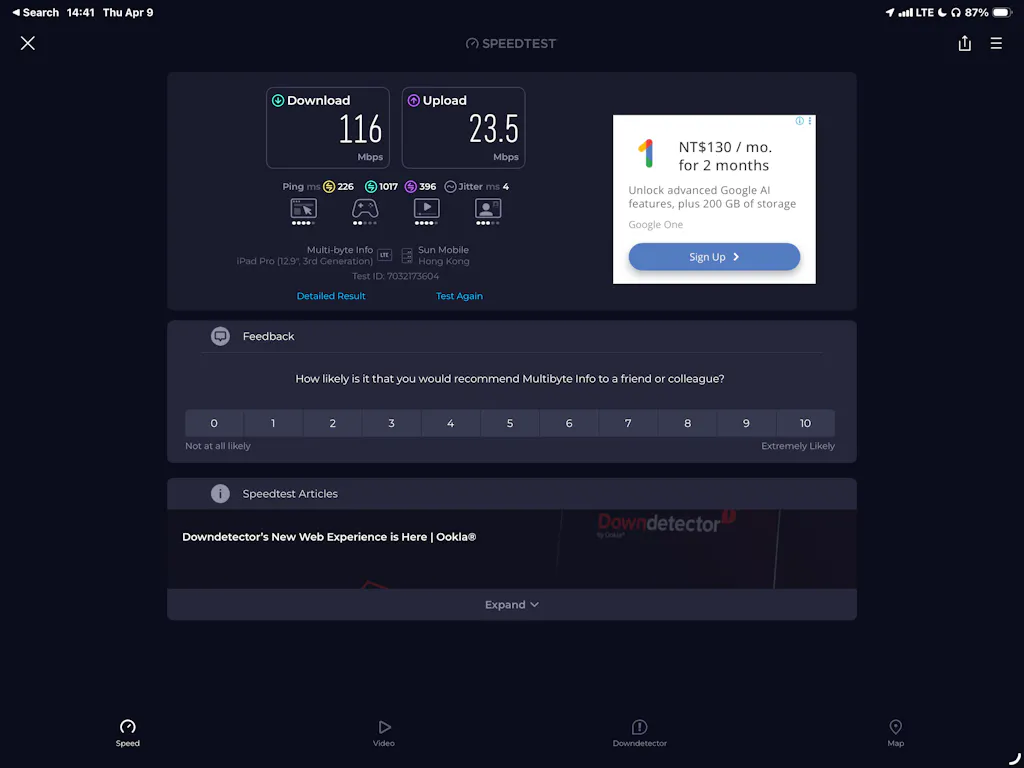
After setup, run a simple test and fix common problems. The goal is to separate network issues from device or app issues.
- Test in more than one location. A corner of a building can behave differently than a lobby.
- Try a different app. If only one app is slow, the issue may be app-level, not network-level.
- Check signal strength. If bars are low, wait and retest after moving a few steps.
- Toggle airplane mode briefly to re-register on the network.
- If you use a VPN, consider turning it off temporarily for testing, then decide based on your needs.
Also watch for congestion. If many people in the same area are streaming or gaming at the same time, speeds may drop. In that case, schedule heavy tasks for a calmer window, such as downloading maps or media when you have a stronger signal.
If you want broader plan coverage, you can also review additional UbeSIM pages like unlimited-style options for broader use and compare them to your typical day.
Common Questions Answered
What affects the speed of mobile data most?
Coverage and signal strength are the biggest factors. Network type, local congestion, and how far you are from a service area also matter. On your phone, settings like data-saving mode, background syncing, and app behavior can change how fast it feels.
How can I tell if the problem is my plan or my phone?
First, test in two different locations with similar lighting and indoor conditions. Next, test two different apps, such as a map page and a video page. If everything is slow everywhere, the issue is more likely network-related. If only one app is slow, focus on app settings or reinstalling the app.
Will high-speed mobile data access drain my battery faster?
Using mobile data can increase battery usage, especially when the signal is weak. If your phone constantly searches for a stable connection, power consumption can rise. To reduce drain, keep your screen brightness reasonable, limit background refresh, and move to an area with better reception.
Is it better to stream on mobile data or Wi-Fi?
If Wi-Fi is stable and secure, it is often the smoothest option for streaming. When Wi-Fi is unreliable, mobile data can be more consistent. The best choice depends on your environment, signal quality, and the size of your media queue.
Summary & Next Steps
High-speed mobile data access is achievable when you align three things: coverage, a suitable data plan, and smart phone settings. Start by checking service quality where you will be. Then choose an option that matches your usage, and optimize background apps so your connection stays responsive. Finally, test in a couple of spots and troubleshoot using simple steps like airplane mode and app checks.
If you want to explore travel-ready plan choices, review relevant options on UbeSIM. For example, compare data package pages for your destination such as US options, Singapore options, and UAE options. Choose the plan that fits your day-to-day usage, then follow the setup steps above for smoother performance.
Disclaimer: Mobile network performance varies by location, device, and time of day. This article provides general guidance and does not guarantee specific speeds. For best results, verify service details with your provider and test your connection when you arrive at your destination.
About the Author
UbeSIM is a travel connectivity brand focused on helping people stay connected with practical mobile data solutions. The team brings expertise in mobile data planning, connectivity education, and user-friendly setup guidance. If you want to improve your on-the-go experience, start with the steps above and choose the option that matches your route and usage.
The content in this blog post is intended for general information purposes only. It should not be considered as professional, medical, or legal advice. For specific guidance related to your situation, please consult a qualified professional. The store does not assume responsibility for any decisions made based on this information.
0 comments